Posts

Showing posts with the label MEMCM

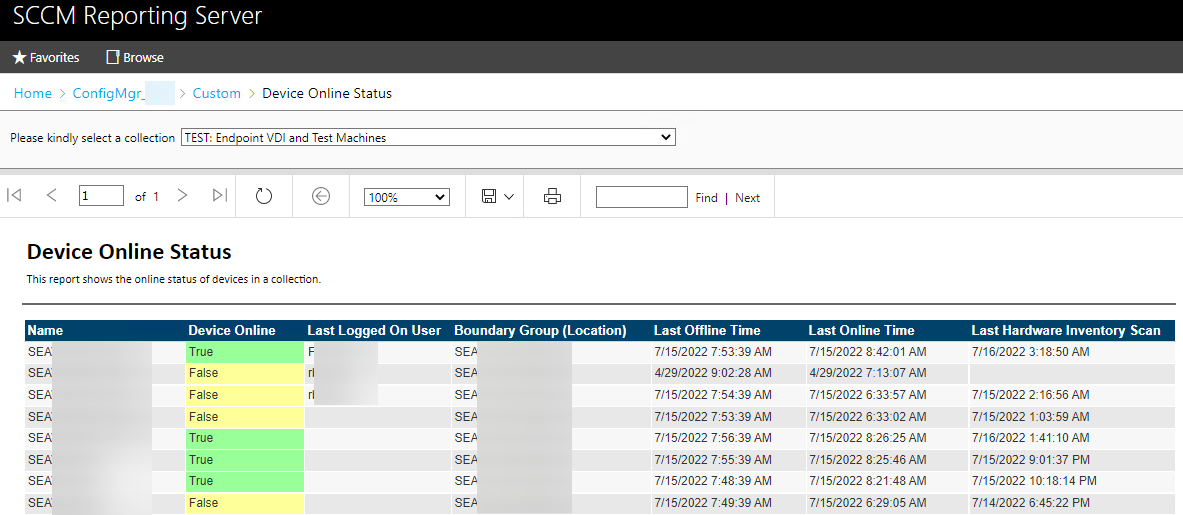
MECM Device Online Status Report
Image
My organization has a need to monitor the online status of a select set of devices. While MECM is not a monitoring tool you can easily report on the client online status  which is that green check box that shows up next to a Device if it's online. I wrote a quick report that queries SQL for that magical green check box and shows you some basic info. The report has the device name, online status, last logged on user, boundary group(s), last online/offline time, and the last hardware inventory scan time. As with any report, you'll need to change the Data Source to your site's default once you import it. If you're not familiar with importing reports and changing the Data Source, head over to  System Center Dudes  and take a look at their great article on it. The Data Source part is a little bit down from the top in the section called CHANGE THE DATA SOURCE .  Download Here:    rudybankson/MECM-Device-Online-Status-Report (github.com) And if you like this, plea...
Temp Local Admin through MECM Run Script

Image
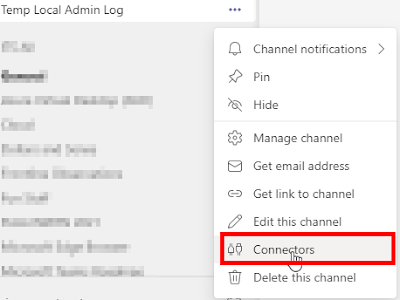
You’re a Config Manager administrator but your user account doesn’t have local administrator rights on any of the computers you have to support. What now?! If only you had access to an enterprise management tool that could run a PowerShell script on any computer it manages. Yeah, I went there. Download Script:  https://github.com/rudybankson/Temp-Local-Admin I wrote a script to add a user to the Administrators group on a computer for a variable time period. When time expires, a scheduled task runs once to remove the user from the Administrators group and 10 seconds later the scheduled task self-destructs in a scene only topped by Tom Cruise in Mission Impossible. When you run the script, an event is logged in the event viewer and a Teams channel is notified using a Teams web hook. DISCLAIMER:   This method of adding a local administrator is far from secure. Unless you have Group Policy or some other tamper resistant 3 rd party tool managing your Administrator group, your ...

MECM Client Diagnostic Logs

Image
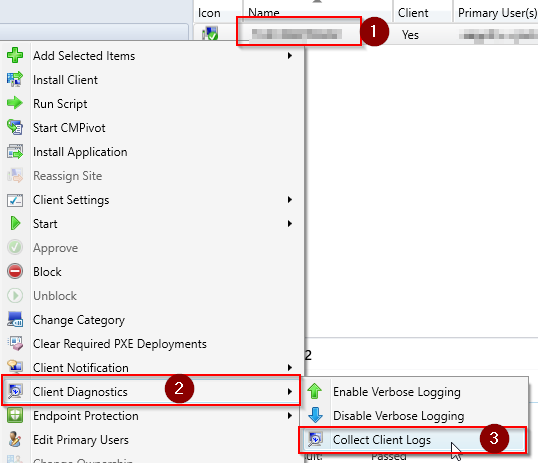
Have you ever wanted to look at MECM client logs for a remote system? If your organization follows security best practices, it can be a challenge just to navigate to the C$ share on a system and access the CCM logs folder. Check out the little-known Client Diagnostics > Collect Client Logs right click option in the MECM console. It will use the Client Notification fast channel (near real-time) in MECM to collect the contents of %windir%\ccm\logs along with some basic diagnostic data about the system. The MECM client zips up the logs and diagnostic data and sends it to the MP. To view the logs you just have to right click on the device, go to Start, and click on Resource Explorer. The Diagnostic Files section of Resource Explorer will show any recent log/diagnostic collection data. Collecting Client Diagnostics & Logs Open the MECM console and go to Assets and Compliance\Overview\Devices. Right click on a Device (1), go to Client Diagnostics (2), and click on Collect Client Logs ...

Config Manager Reporting & The Ultimate Computer Inventory Report

Image
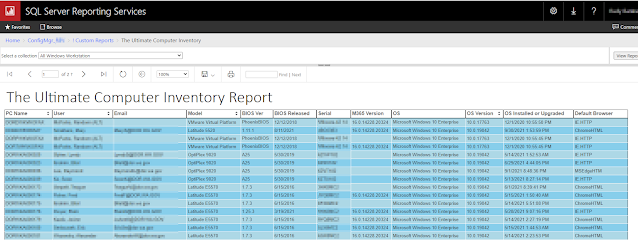
Have you ever wanted to make your own reports in Config Manager but just not had the time to dive in? Me too, but finally I forced myself to sit down and dive in. I'm working on a project right now where we are doing an available application deployment by device, but we want to be able to nag our users by email if they haven't done it yet. So how do you turn a device into an email address? I decided to make a custom report that shows me a list of all machines in a collection and then gives me some key info, but most importantly it gives me the top console user and their email address. Our user discovery brings in the "mail" attribute for users so this information is already stored in our Config Manager database. If you don't want to build it on your own, skip to my GitHub and download the RDL. https://github.com/rudybankson/MECM-The-Ultimate-Computer-Inventory-Report Part 1:  The SQL Foundation The first step to building your own reports is to open up SQL Server M...

CMPivot to check Services and start them (with a little help)

Image
Have you ever needed to get a really fast real-time look at if a service is running on a set of servers or workstations? Open CMPivot against a collection, type in your query, and send it. Seconds later you get real-time answers to your query for any online device. Queries for CMPivot run on 42 devices at once, until all devices you're querying have responded.  The last time my organization did server updates, I (and a trusty super awesome coworker) had to verify if a couple of SQL services were running on a small collection of servers. As we were manually checking these one by one, I came up with the idea that it would be incredibly helpful to use CMPivot.  The below query in CMPivot will return all devices where a SERVICE with the name containing SQL is NOT RUNNING and the service's start type is AUTO. In other words, if a service with SQL in the same is supposed to be automatically running and it's not, this query tells us. Service | where Name contains 'sql' ...

Uninstall MSI Applications with Run Scripts and CMPivot

Image
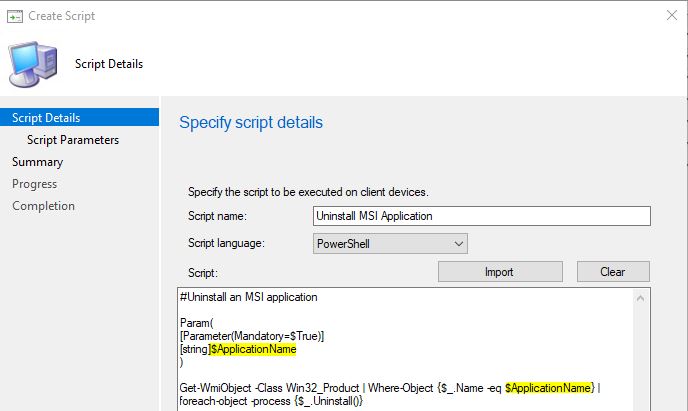
As Config Manager admins, we're frequently approached by managers that want us to do something NOW. Enter the Run Scripts feature in Config Manager. If you're not familiar with CMPivot, Run Scripts, and Client Notification then it would be super helpful for you to read a few of my past blogs. Intro to CMPivot and Run Scripts A Deeper Dive into CMPivot, Run Scripts, and Client Notification Adding Parameters to Run Scripts Today's ramble is on how to use Run Scripts with a parameter to instantly uninstall an MSI application from your device(s). We're going to use a quick 12 year old PowerShell script (it's an oldie, but a goodie) I found on Stack Overflow . #Uninstall an MSI application Param ( [ Parameter (Mandatory = $True ) ] [ string ] $ApplicationName ) Get-WmiObject -Class Win32_Product | Where-Object { $_ . Name -eq $ApplicationName } | foreach-object -process { $_ . Uninstall()} In you SCCM or MEMCM or MECM or whatever...

Run Scripts with Parameters in MEMCM (R.I.P. SCCM)

Image
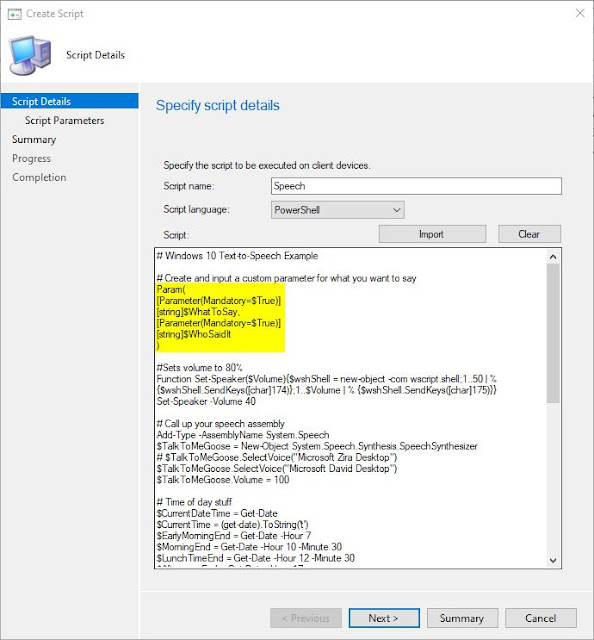
How do you use Parameters in MEMCM's (R.I.P. SCCM) Run Scripts? How do you use Parameters on the Run Scripts  feature? You get three guesses, but the first two don't count. That's right, you create a script with standard PowerShell Parameters and you build it out in MEMCM. In your MEMCM console, navigate to Software Library > Overview > Scripts. If you're not familiar with Run Scripts  in MEMCM, check out my previous Blog articles on it. Click on Create Script . In the Create Script Wizard  that pops up input a Script Name , pick between PowerShell or PowerShell in your Script Language , import or paste in your script with Parameters, and click on Next . My demo script for this article ( scroll alllll the way down, it's at the bottom ) is about an 8 out of 10 on the cool factor, and about a 3 out of 10 on the usefulness factor. Long story short, the script will make a computer talk. There are two Parameters that you can input, one for "what do y...